Chrome for mobile offers a range of features to enhance your browsing experience. Here are some essential hacks:
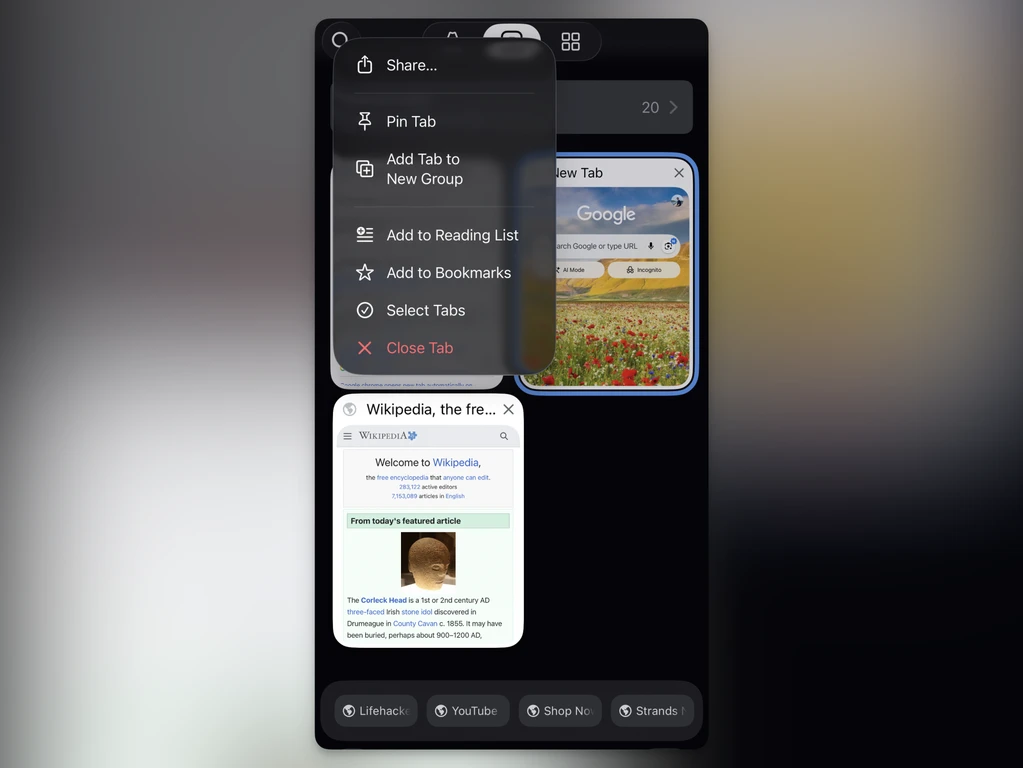
Pin Important Tabs: Keep key pages easily accessible by pinning them. This is especially useful on tablets. To pin, open the Tabs menu, tap and hold a page, then select Pin Tab. Pinned tabs persist even if you close all others.
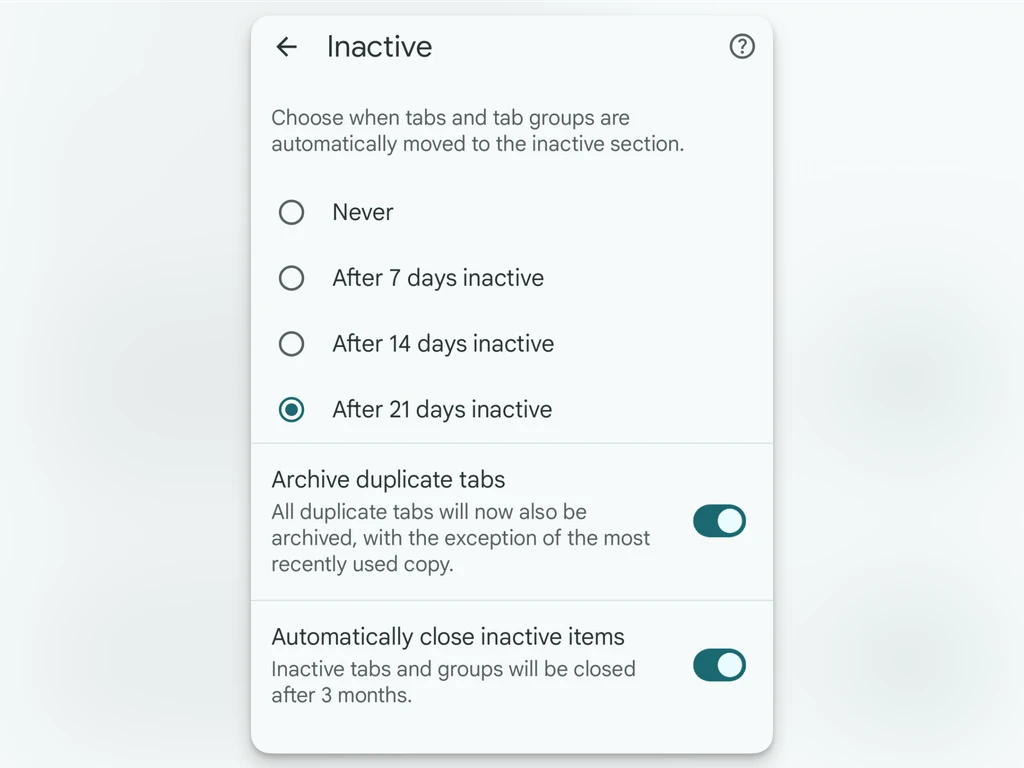
Manage Inactive Tabs: Chrome for Android automatically moves unused tabs to an 'Inactive Tabs' section after 21 days. Clear these by tapping Close all inactive tabs. On Android, you can also set it to auto-close tabs older than three months.
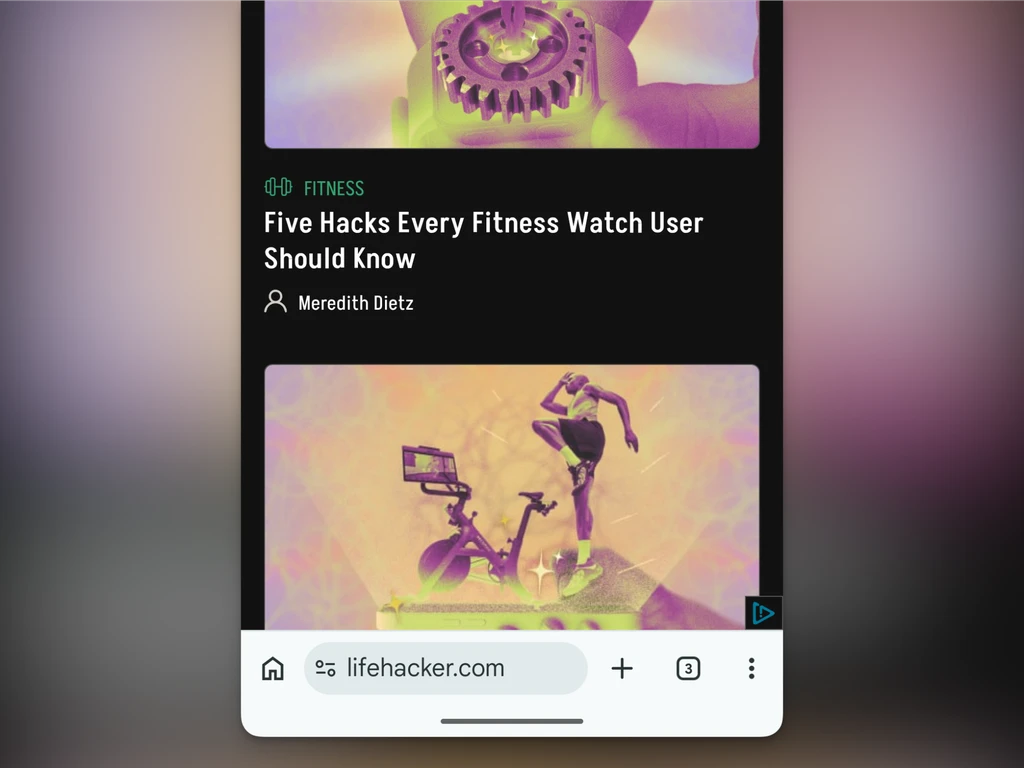
Move the Address Bar: For easier navigation, move the address bar to the bottom. Tap and hold the address bar, then select Move address bar to bottom.
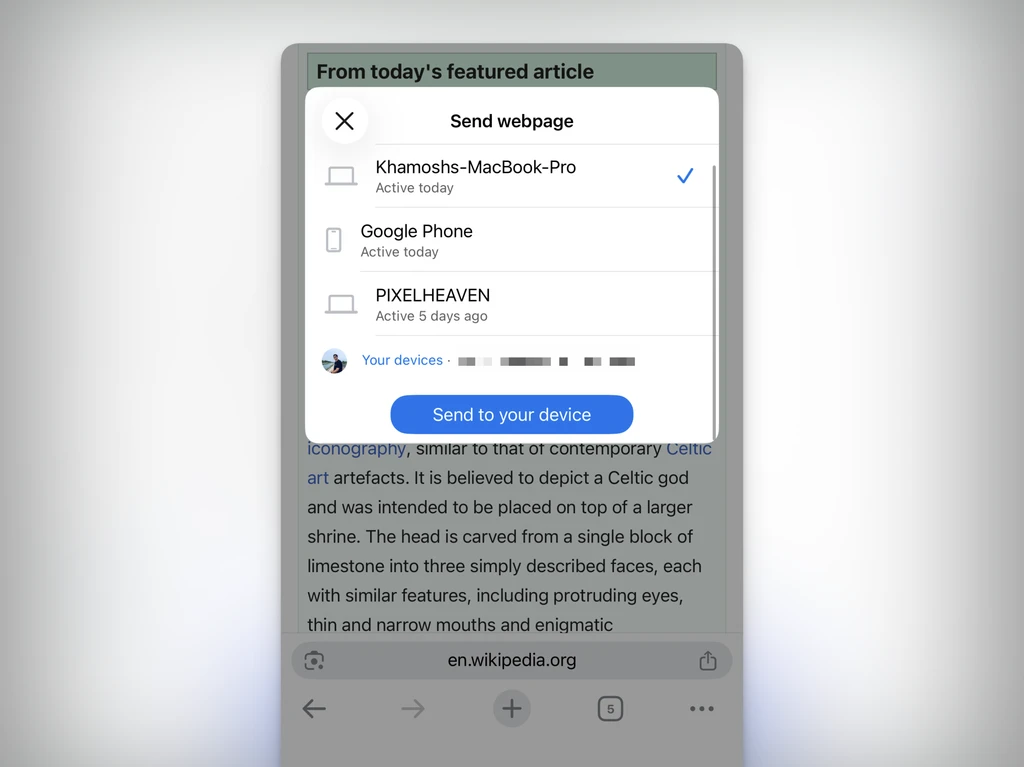
Send Links to Desktop: Share links from your phone to your desktop Chrome. Tap Share and choose Send to Your Devices. Select the device and confirm.
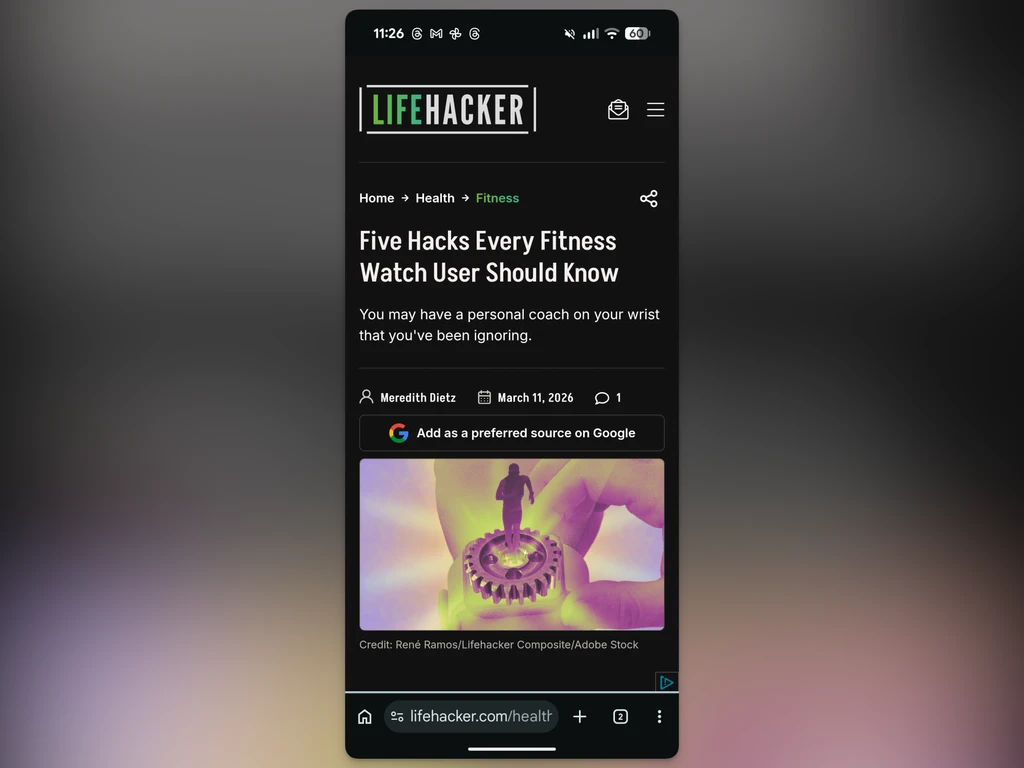
Force Dark Mode: Enable dark mode for all websites. Go to Chrome://flags, search for Auto Dark Mode for Web Contents, and enable it. Relaunch Chrome to apply changes.
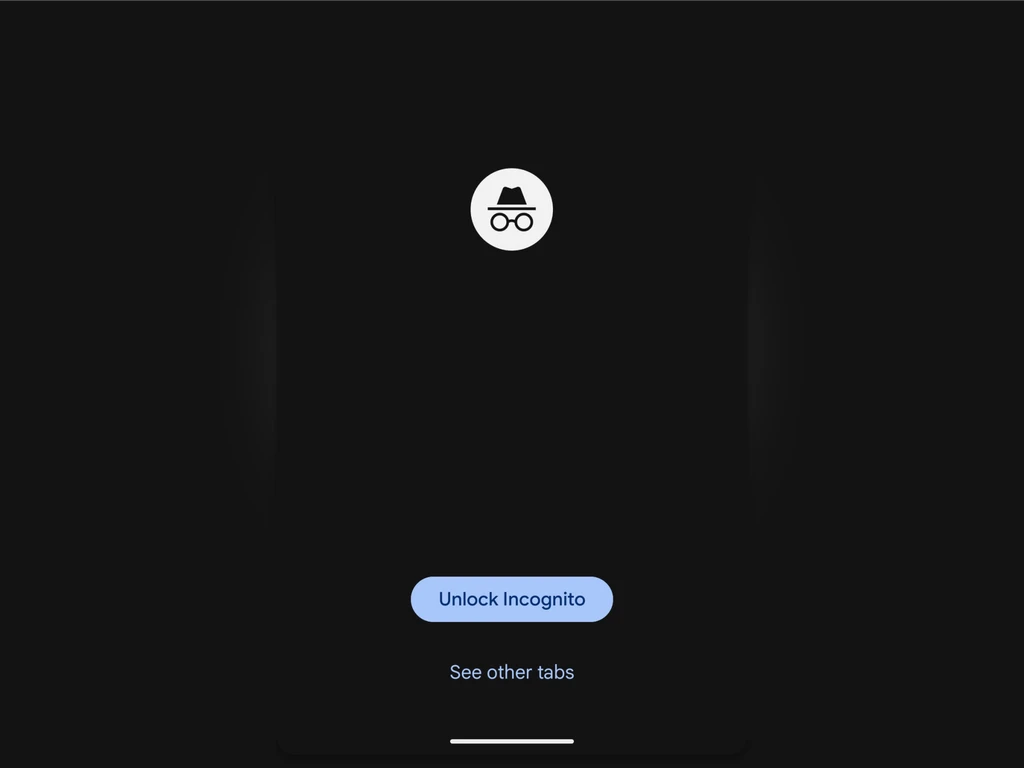
Lock Incognito Tabs: Secure your private browsing. On Android, go to Settings > Privacy and Security and enable Lock Incognito tabs when you leave Chrome. On iOS, use Settings > Privacy and security > Hide Incognito tabs and choose Lock Immediately with Face ID.
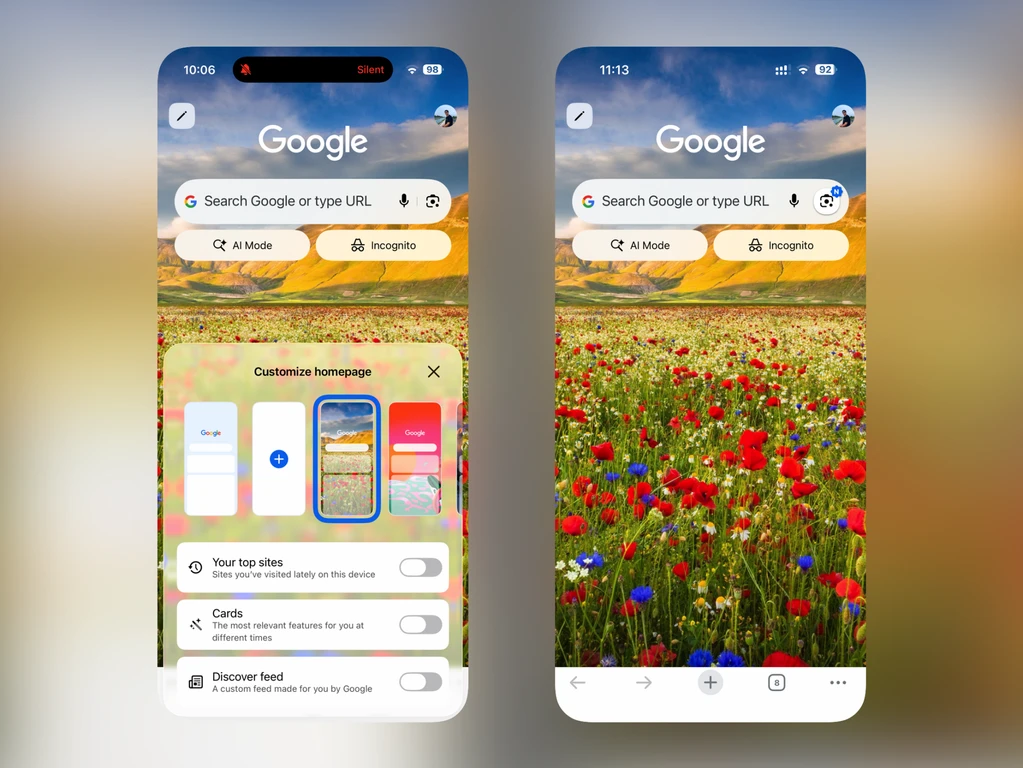
Customize Start Page: Simplify your start page. Tap Edit and disable unwanted sections like Discover feed and card suggestions. You can also change the background for a cleaner look.