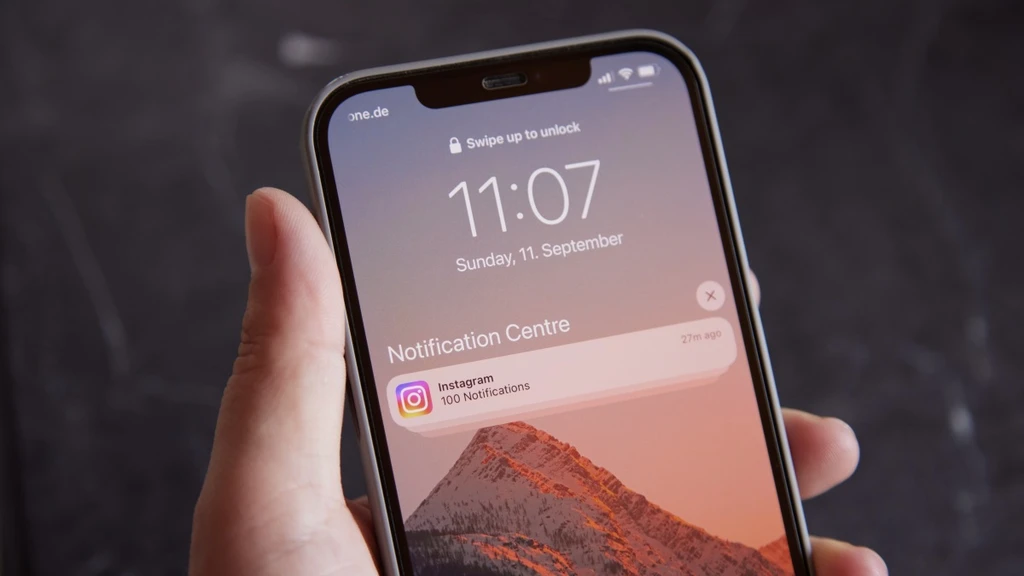
Recent discoveries reveal that law enforcement can access deleted messages from an iPhone's push notification database. This vulnerability allows sensitive information, even from deleted apps like Signal, to be retrieved.
While the exact mechanics of this database remain unclear, it functions similarly to how macOS records notifications, potentially saving content displayed in alerts. To safeguard your data, it is crucial to adjust notification settings across your devices.
On iPhones, navigate to Settings > Notifications > Show Previews and select Never. Alternatively, you can disable previews for individual apps.
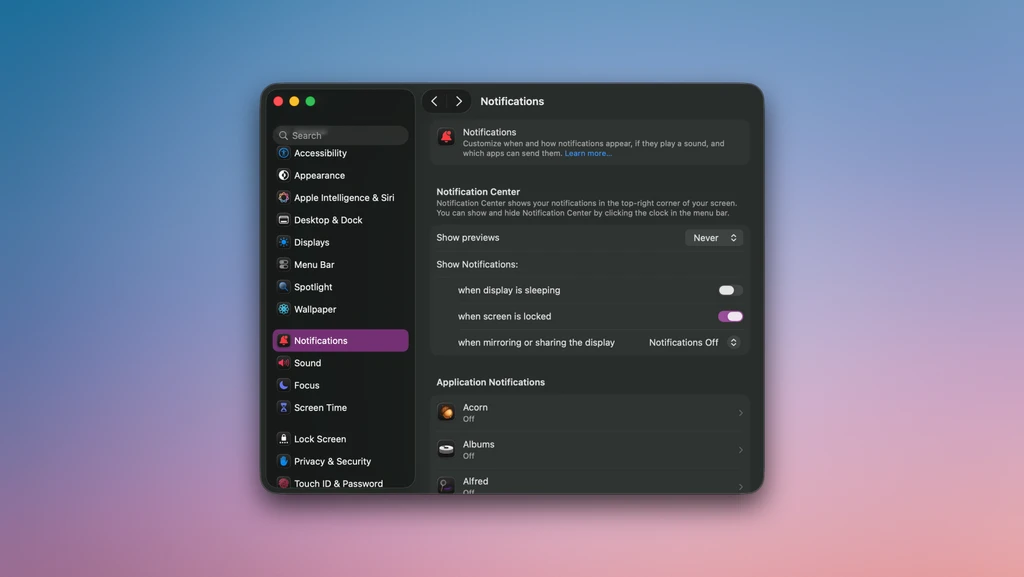
For Macs, go to System Settings > Notifications, click Show previews, and select Never. The free app AuRevoir can also be used to view and remove data from the Mac's notification database.
Android users can adjust lock screen notification settings under Settings > Notifications > Notifications on lock screen by turning off Show sensitive content. Granular controls are also available under Settings > Notifications > App notifications.
Windows users can disable lock screen previews by opening Settings > System > Notifications > Notifications and disabling Show notifications on the lock screen. Content hiding can be enabled for individual apps.